How to Change Hostname in SolusVM 2 Print
- 0
You can change the hostname in SolusVM 2.
1. Log in to your SolusVM 2 Control Panel.
2. Under Projects, click on the project that contains your VPS.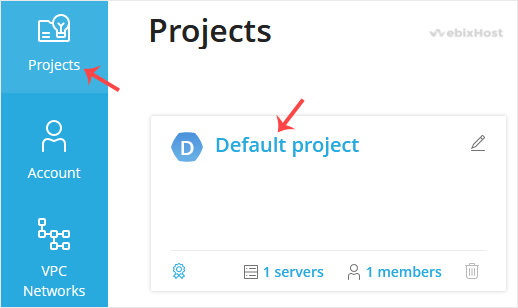
3. Click on the appropriate VPS.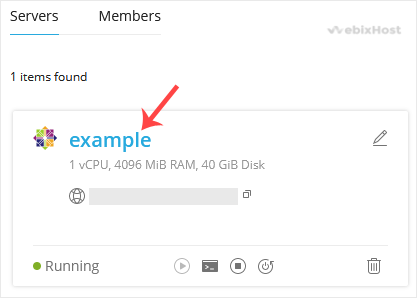
4. Click on the Edit icon at the top right side. Enter your new hostname, then click Save.
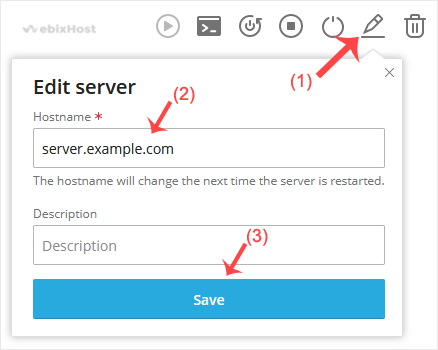
5. A reboot is required so that the saved changes can take effect.
Some example hostnames:
server1.example.com
hostingserver.example.com
You have successfully changed the hostname.
Was this answer helpful?
Related Articles
How to Reboot/Restart VPS in SolusVM 2
You can restart VPS via the command line or SolusVM 2.
How to Reboot/Restart a VPS via SolusVM...
How to Forcefully or Gracefully Shut Down the VPS in SolusVM 2
You can shut down the VPS in two ways - forcefully or gracefully in SolusVM 2.
How to...
How to Start/Boot Your VPS in SolusVM 2
If your VPS is down/offline, you can start it using SolusVM 2.1. Log in to your SolusVM 2 Control...
How to Access VPS via VNC in SolusVM 2
You can access your VPS via VNC in an emergency, such as when a firewall blocks your IP, the...
How to Reinstall an OS Using SolusVM 2
You can easily Install/Reinstall the operating system using SolusVM 2. However, note that this...