How to Change Email Account Password in Plesk Print
- 0
You can change your email password in Plesk through the following steps:
1. Log in to your Plesk account.
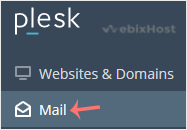
2. Click on Mail from the Sidebar Menu.
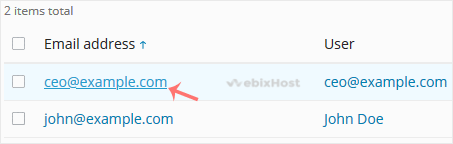
3. Under the email list, click the email account whose password you want to change.
4. In the Password field, enter a password or click on Generate to generate one. Click Show to display the password and then copy it.
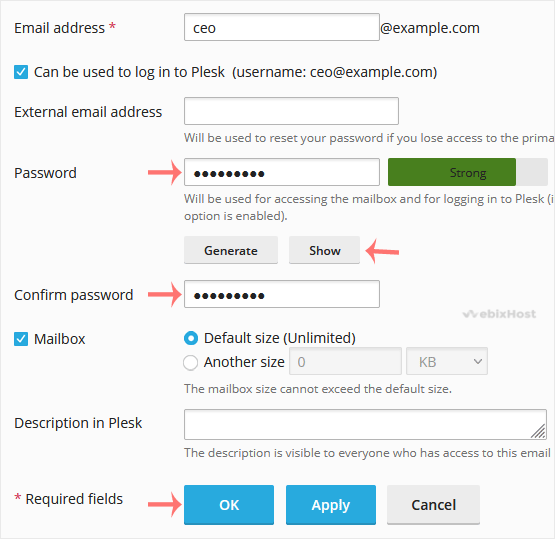
5. Click OK.
The email account password has been successfully changed in Plesk. You can now use the new password to access your email.
Was this answer helpful?
Related Articles
How to Create an Email Account in Plesk
Follow this tutorial to create an email account in Plesk.
1. Log in to your Plesk account....
How to Access Email from Plesk Webmail
You can access your Email directly from Webmail.
Open https://webmail.example.com, and...
How to Rename an Email Address in Plesk
In this tutorial, you will learn how to rename an email address in Plesk. This is helpful when...