How to Add a New Domain in Plesk Print
- 0
Follow this tutorial to add a new domain to your Plesk account.
1. Log in to your Plesk account.
2. Click on Websites & Domains from the Sidebar Menu.

3. Click on Add Domain.

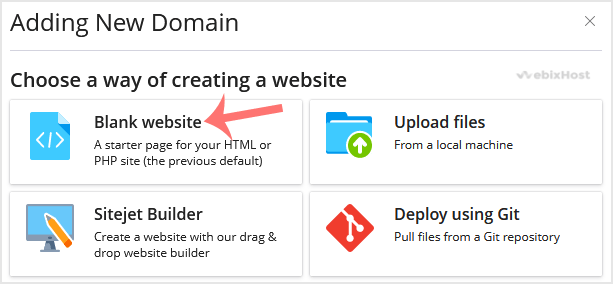
4. Please, choose Blank Website as an option.
5. In Adding New Domain, enter the following details:
- Domain name: Enter your domain name.
- Hosting Type: Select Website Hosting from the drop-down menu. You can leave all other options as they are.
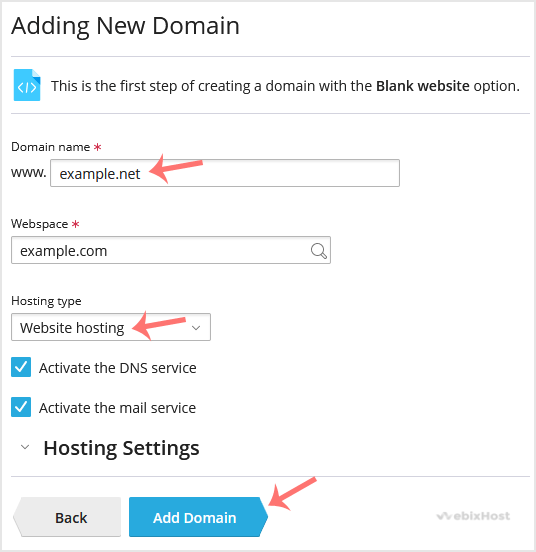
6. Click on Add Domain.
Once your domain is added, you can manage it from the Websites & Domains option.
Was this answer helpful?
Related Articles
How to Add a Subdomain in Plesk
In this tutorial, you will learn how to add a subdomain in Plesk. Subdomains help you create...
How to Remove a Domain in Plesk
You can remove a domain in Plesk by following this tutorial.
1. Log in to your Plesk account....
How to Remove a Subdomain in Plesk
A subdomain is an additional part of your primary domain. Please, follow this tutorial to remove...
How to Redirect a Subdomain to an External URL in Plesk
Learn how to set up a subdomain redirect in Plesk. This method works for pointing subdomains to...
How to Remove a Subdomain Redirect in Plesk
In this tutorial, you will learn how to remove a subdomain redirect in Plesk. This is useful when...