How to Edit or Delete Scheduled Tasks in Plesk Print
- 0
Follow this tutorial to edit or delete Scheduled Tasks (Cron Jobs) in Plesk.
How to Edit a Scheduled Task?
1. Log in to your Plesk account.
2. Click on Websites & Domains from the Sidebar Menu.

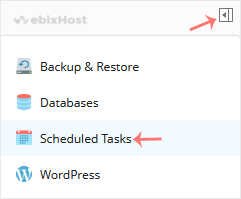
3. Click on the Pull icon in the right sidebar and choose Scheduled Tasks.
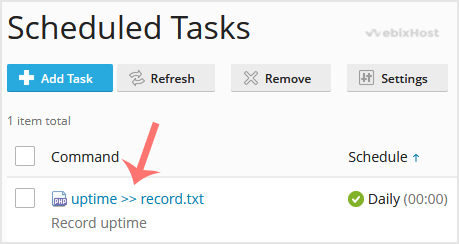
4. Under the Command list, locate your task and click on it.
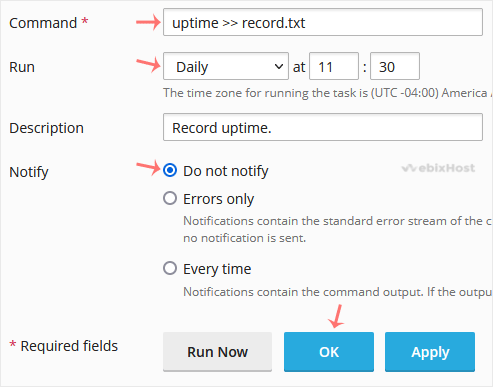
5. Make appropriate changes and confirm with OK.
How to Delete Scheduled Task?
1. Select the tasks you want to remove under the Command list and click on Remove.
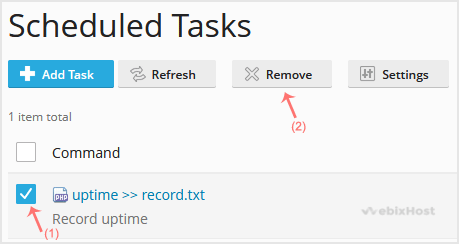
2. A confirmation box will appear. Click Yes, and the selected task will be removed.
You have now learned how to edit or remove scheduled tasks in Plesk.
Was this answer helpful?
Related Articles
How to Edit a File in the Plesk File Manager
Learn how to edit a file directly in the Plesk File Manager. This is useful for making quick...
How to Log in to Plesk
A tutorial on how to access the Plesk Control Panel.
After you place an order and make a...
How to Change the Password of a Plesk Account
Follow these steps to change your Plesk account password.
1. Log in to your Plesk account....
How to Reset a Plesk's Account Password
Follow these steps to reset your Plesk account password.
1. Open your Plesk login URL.
2....
How to Update a Plesk Account's Email Address
Follow these steps to change your Plesk contact email address.
1. Log in to your Plesk...