How to Change the SolusVM 1 Control Panel Password Print
- 0
If you can access your SolusVM 1 VPS control panel, you can easily change your SolusVM 1 password. We recommend changing the password every three months.
1. Log in to your SolusVM 1 Control Panel.
2. From the top navigation bar, click on My Account.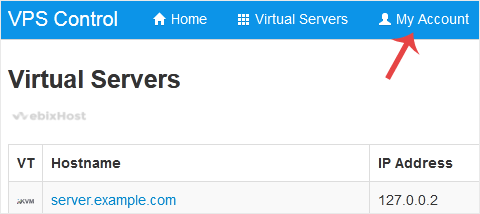
3. Under Change Account Password enter the following details:
- Current Password: Your current SolusVM 1 Control panel password.
- New Password: Your new password.
- Repeat New Password: Again, enter your new password.
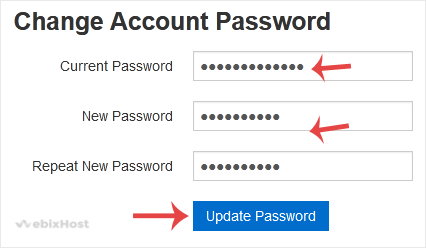
4. Click on Update Password.
You have changed your SolusVM control panel password.
Was this answer helpful?
Related Articles
How to Check VPS Online or Offline Status in SolusVM 1
You can check your SolusVM VPS status and determine whether the VPS is offline or online. You can...
How to Check VPS Specifications and Virtualization Info in SolusVM 1
You can check VPS specifications such as RAM, disk space, virtualization, IP Address, etc., from...
How to Change the SolusVM 1 Account Email Address
If you want to update your SolusVM 1 VPS Control panel email address, follow this instruction.1....
How to Enable or Disable the SolusVM 1 VPS Login Alert
Whenever you log in to your VPS control panel, you will receive a login email alert. You can...
How to Log in to SolusVM 1 Control Panel
You can find the Control Panel URL, username and password in your VPS welcome email.
SolusVM 1...