How to Create an Email Account in SiteWorx Print
- 0
To create a new email account, perform the following steps:
1. Log in to your SiteWorx account.
2. In the Email section, click on Mailboxes.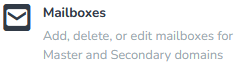
3. Click on the Plus icon or Add an Email Box.
4. Enter the following details:
- E-mail Address: Enter a new email username, such as your first name. If you have multiple domains, choose the domain from the drop-down list.
- Password: Enter a password, or click on Magic Wand to generate one.
- Disk Space Quota: Enter the mailbox quota in megabytes or click on the Unlimited icon.
- Send Copy To: You can leave this as it is. A copy of the messages will be sent to the listed email addresses.
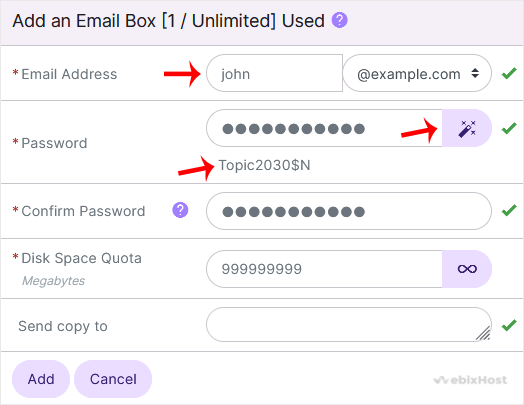
5. Click on Add.
Once your email account is created, it will appear under the Existing E-mail Boxes. 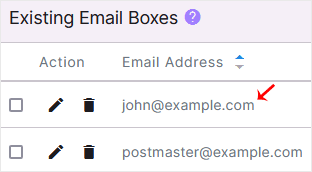
You have created a new email account. It is now ready to use for sending and receiving messages.
Was this answer helpful?
Related Articles
How to Remove an Email Account in SiteWorx
To remove an email account, perform the following steps:
1. Log in to your SiteWorx account....
How to Change Your Email Password in SiteWorx
You can change your email password in SiteWorx through the following steps:
1. Log in to your...
How to Access Email from SiteWorx Webmail
You can access your Email account from Webmail.
1. Log in to your SiteWorx account.
2. In...
How to Forward an Email to Third-party Email Providers
1. Log in to your SiteWorx account.
2. In the Email section, click on Aliases.
3. Click on...
How to Create or Remove the Email Autoresponder in SiteWorx
You can use the email autoresponder for an automated response to your email subscribers or...