How to Reset cPanel's Account Password Print
- 0
If you have access to your cPanel account, follow these steps to reset your password:
1. Log in to your cPanel account.
2. In the Preferences section, click on Password & Security.
3. Enter your old password.
4. Enter your new password or use a password generator.
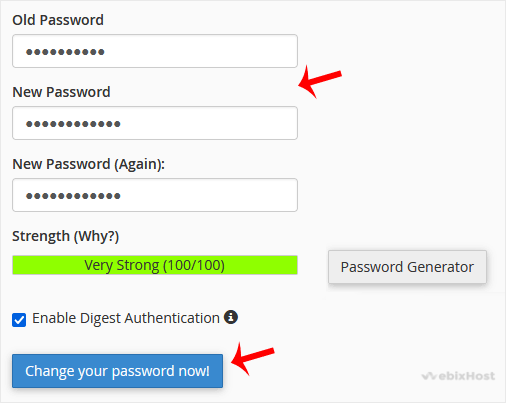
5. Click on Change your password now.
If it displays a success message, it means that the password has been changed. Now, you can access your account using the new password.
Note: If you forgot your cPanel password and cannot access your account, please open a ticket with us.
Was this answer helpful?
Related Articles
How to Update cPanel Contact Information and Receive Resource Limit Notifications
If you want to receive a notification on reaching your disk quota, bandwidth usage limit or wish...
How to Change cPanel's Style/Theme
Switching over to another cPanel theme with a different style is easy.1. Log in to your cPanel...
How to Change the Language of Your cPanel Account
cPanel supports many languages. If you want to change your cPanel language to a native one, you...
How to Upload Files via the cPanel File Manager
You can use cPanel's built-in file manager instead of an FTP program to manage your website...
How to Create a New Folder or Files in the cPanel File Manager
cPanel File Manager is handy for managing your website files.
1. Log in to your cPanel...